
Strikezone for HubSpot — Setup Guide
Learn how to connect HubSpot to Strikezone, authorize the integration, run your first sync, verify your data connection, and manage the integration inside Strikezone.
Overview
Strikezone connects with HubSpot so you can authorize your HubSpot account, sync supported CRM and marketing data, and use that data inside Strikezone.
This guide explains how to connect HubSpot to Strikezone, complete the authorization flow, run the initial sync, verify that the connection is working, and manage the integration afterward.
Before You Begin
Before connecting HubSpot to Strikezone, make sure you have:
- An active Strikezone account
- Access to the Strikezone workspace where you want to connect HubSpot
- A HubSpot account with permission to install and authorize apps
- The relevant source data available in the HubSpot portal you plan to connect
Sign in to Strikezone
- Go to app.strikezoneai.com and sign in to your Strikezone account.
- Open the workspace where you want to connect HubSpot.
Open Data Connectors
- Inside Strikezone, navigate to Data Connectors.
- Locate HubSpot in the available connector list.
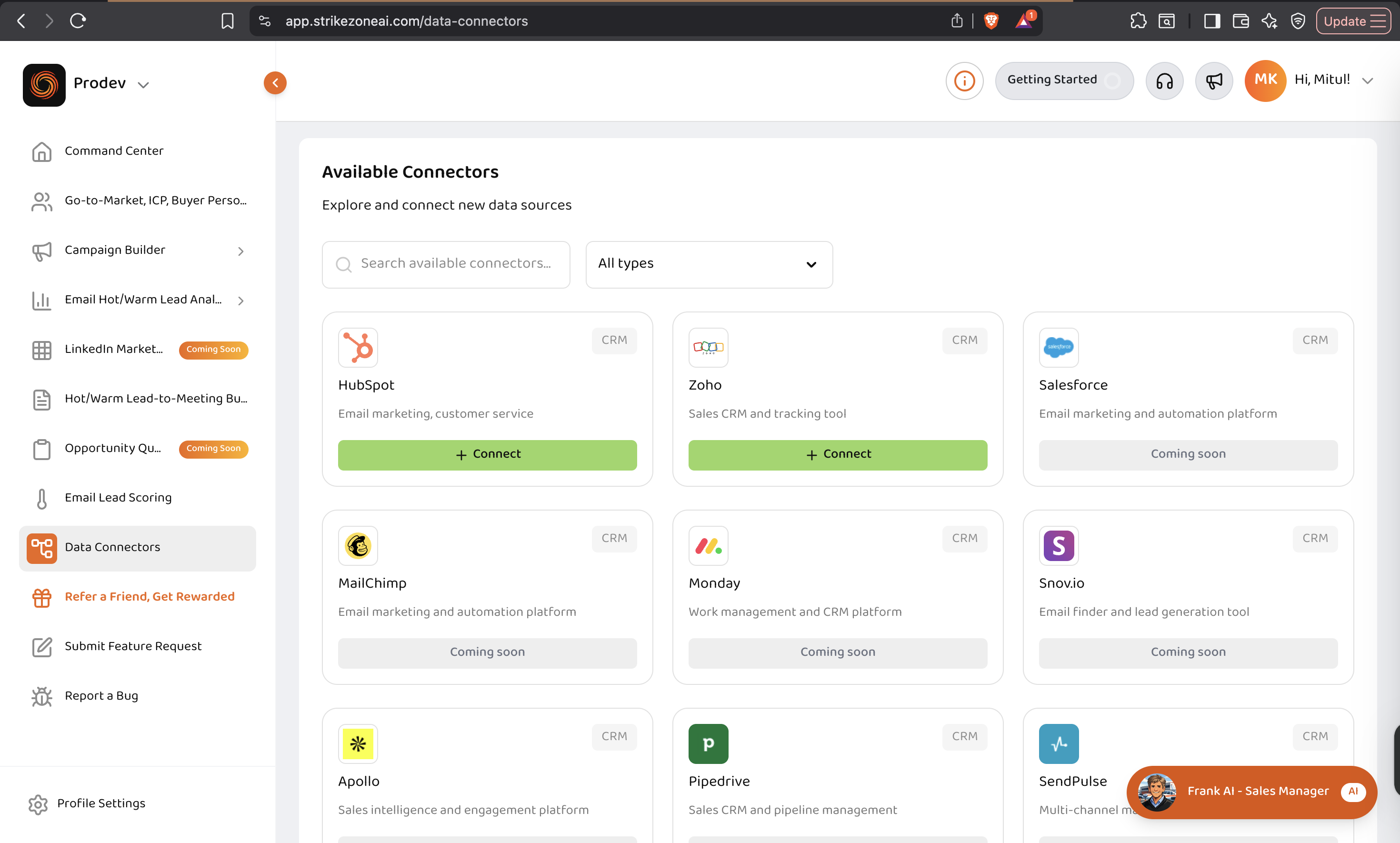
Screenshot: Strikezone Data Connectors page with HubSpot listed
Start the HubSpot Connection
- Click Connect HubSpot.
- Strikezone will redirect you to HubSpot to complete the authorization flow.
Authorize the Connection in HubSpot
In HubSpot:
- Select the HubSpot account you want to connect.
- Review the requested permissions.
- Approve access to continue.
After authorization is complete, you will be redirected back to Strikezone.
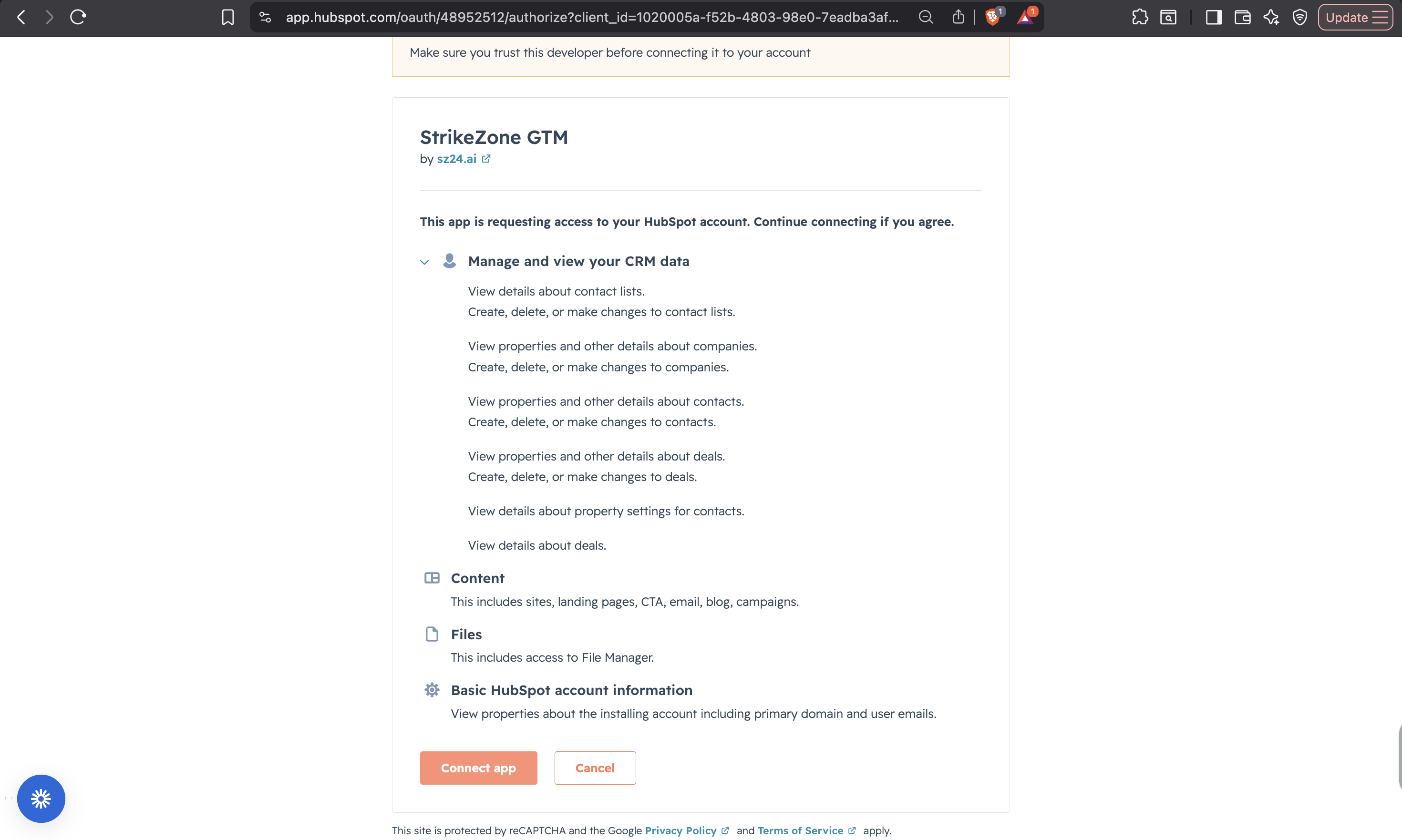
Screenshot: HubSpot Authorization / Scope Approval Screen
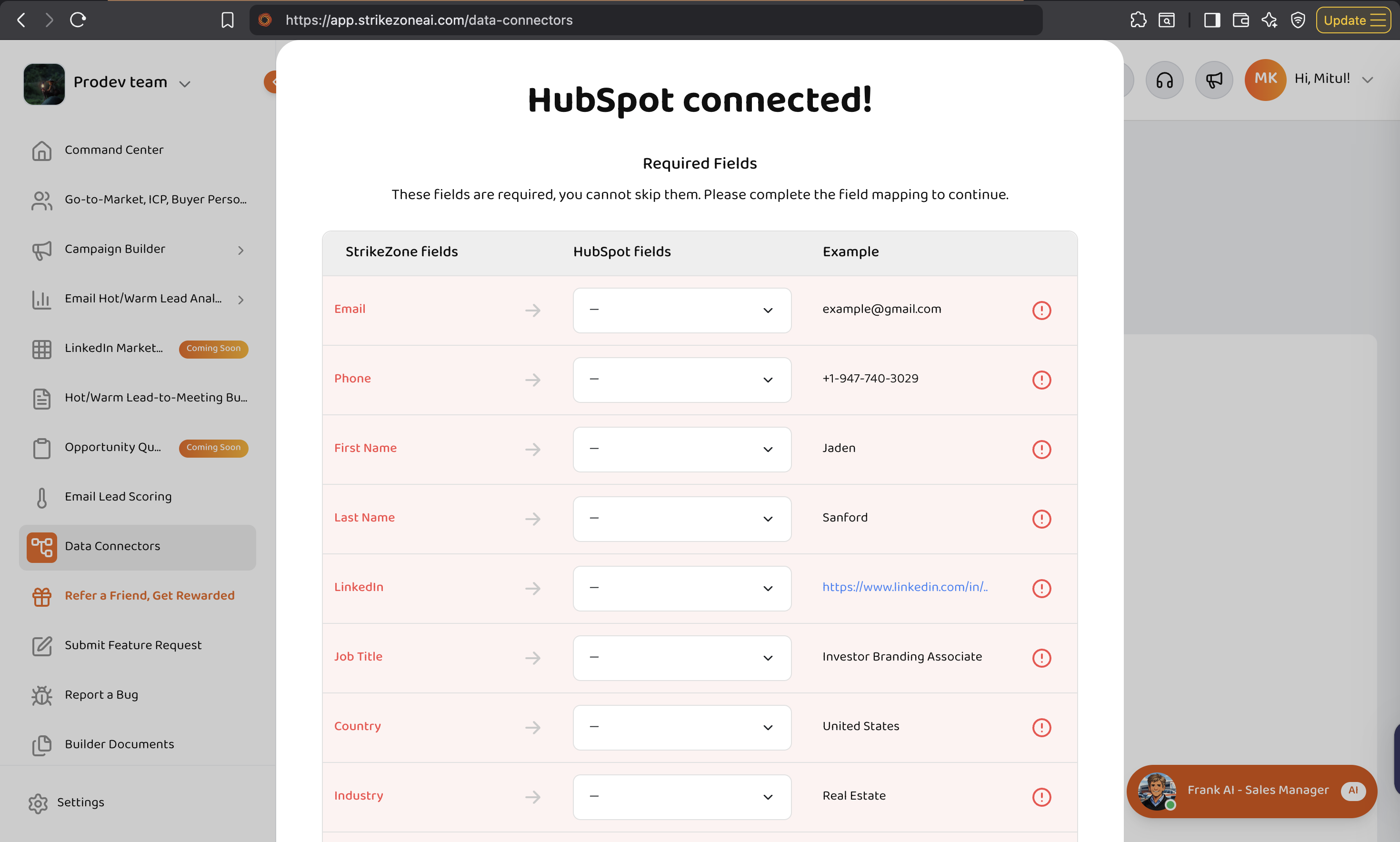
Screenshot: HubSpot field mapping
Confirm the Connector is Connected
After you return to Strikezone, the HubSpot connector should display a status of Connected.
This confirms that the HubSpot authorization was completed successfully.
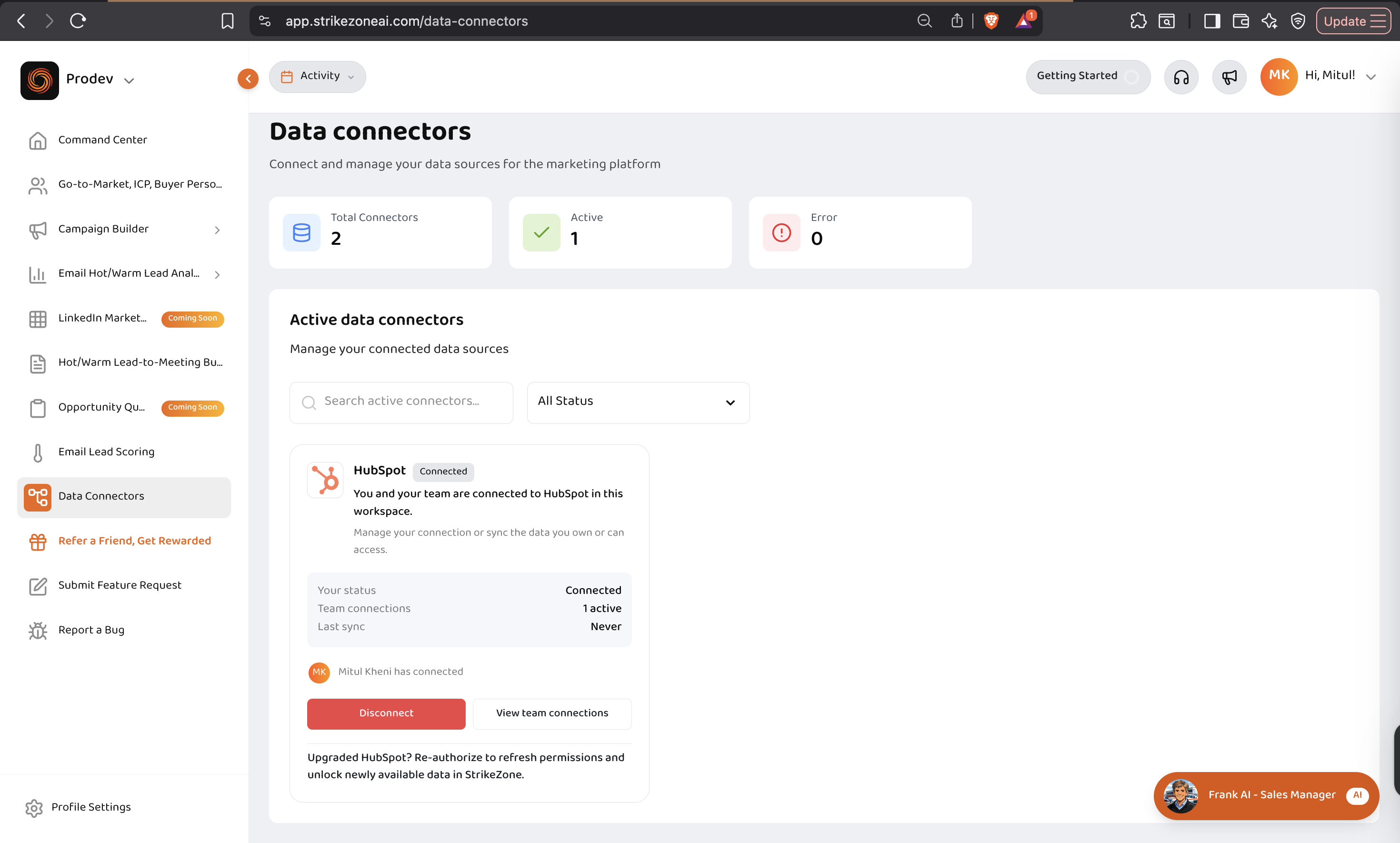
Screenshot: Strikezone HubSpot connector showing Connected status
Run the Initial Sync
- Open the connected HubSpot connector and start the initial sync.
- This first sync imports the supported HubSpot data available to Strikezone through the connected account and approved permissions.
- Depending on the amount of source data, the sync may take some time to complete.
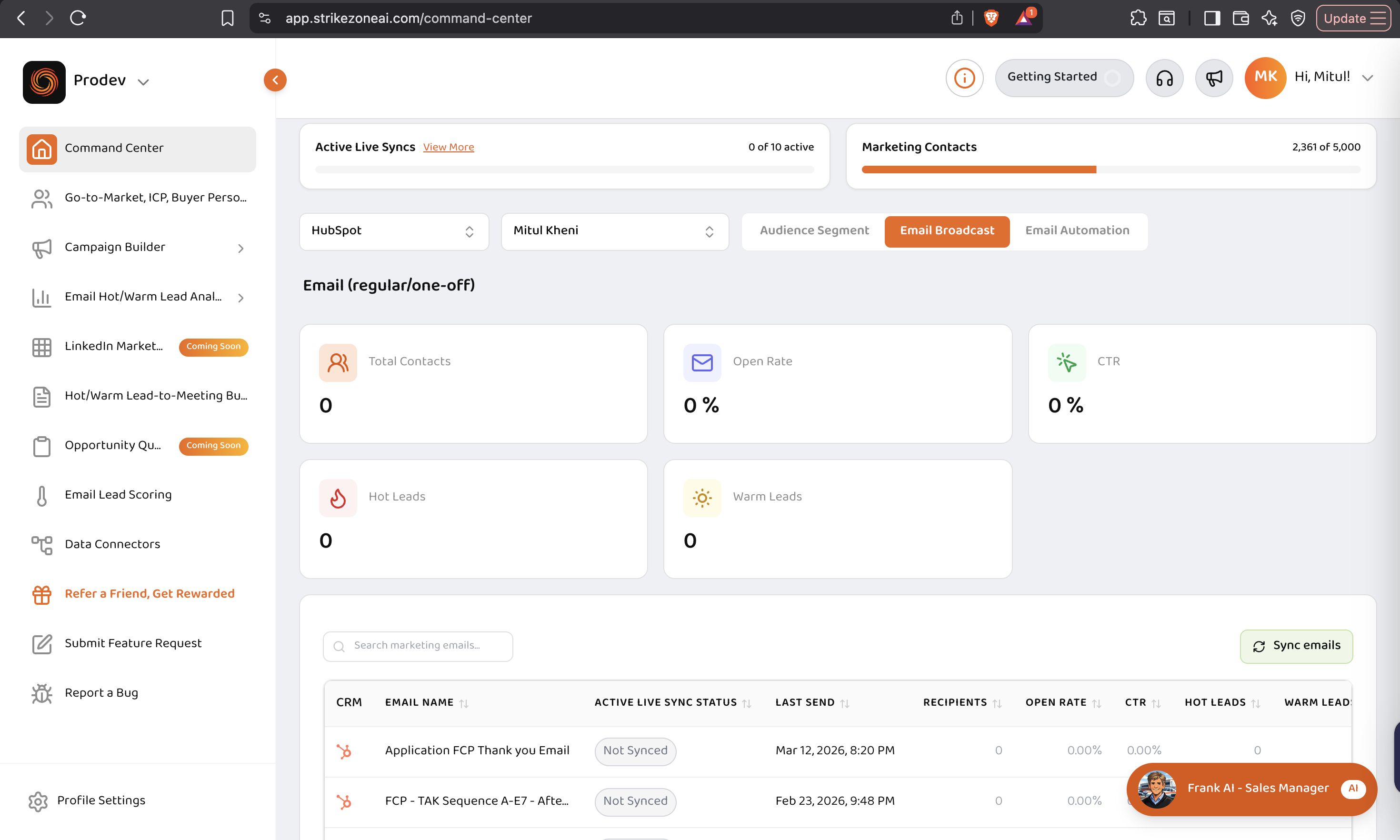
Screenshot: Strikezone Command Center
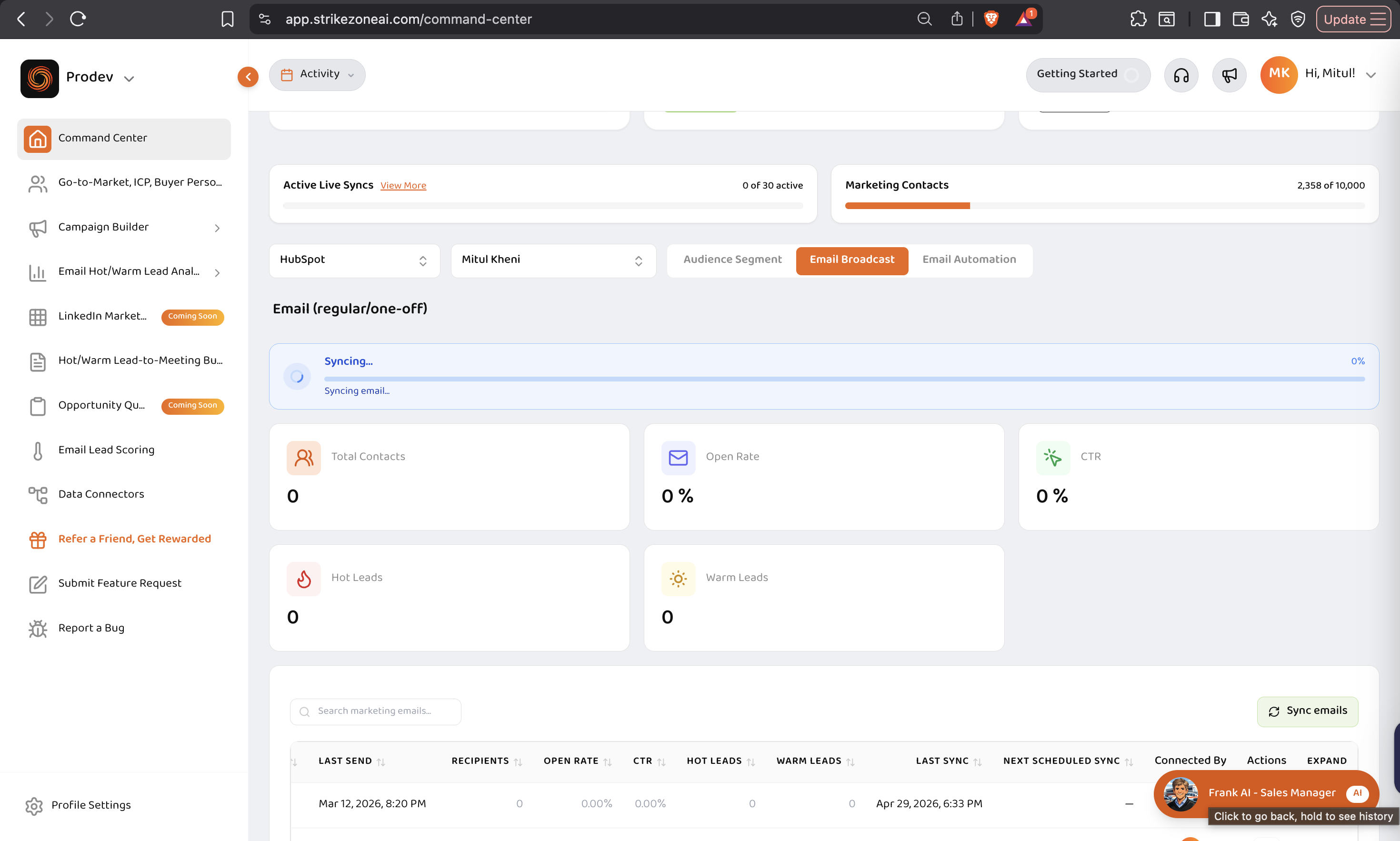
Screenshot: Initial sync screen or sync-in-progress state
Verify the Integration is Working
After the sync completes, confirm that:
- The HubSpot connector still shows Connected
- HubSpot data is available inside Strikezone
- The expected supported records, activity, or objects appear in the relevant Strikezone views
The exact data available in Strikezone depends on the connected HubSpot portal, the permissions granted during authorization, the HubSpot subscription tier, and the source data currently available in HubSpot.
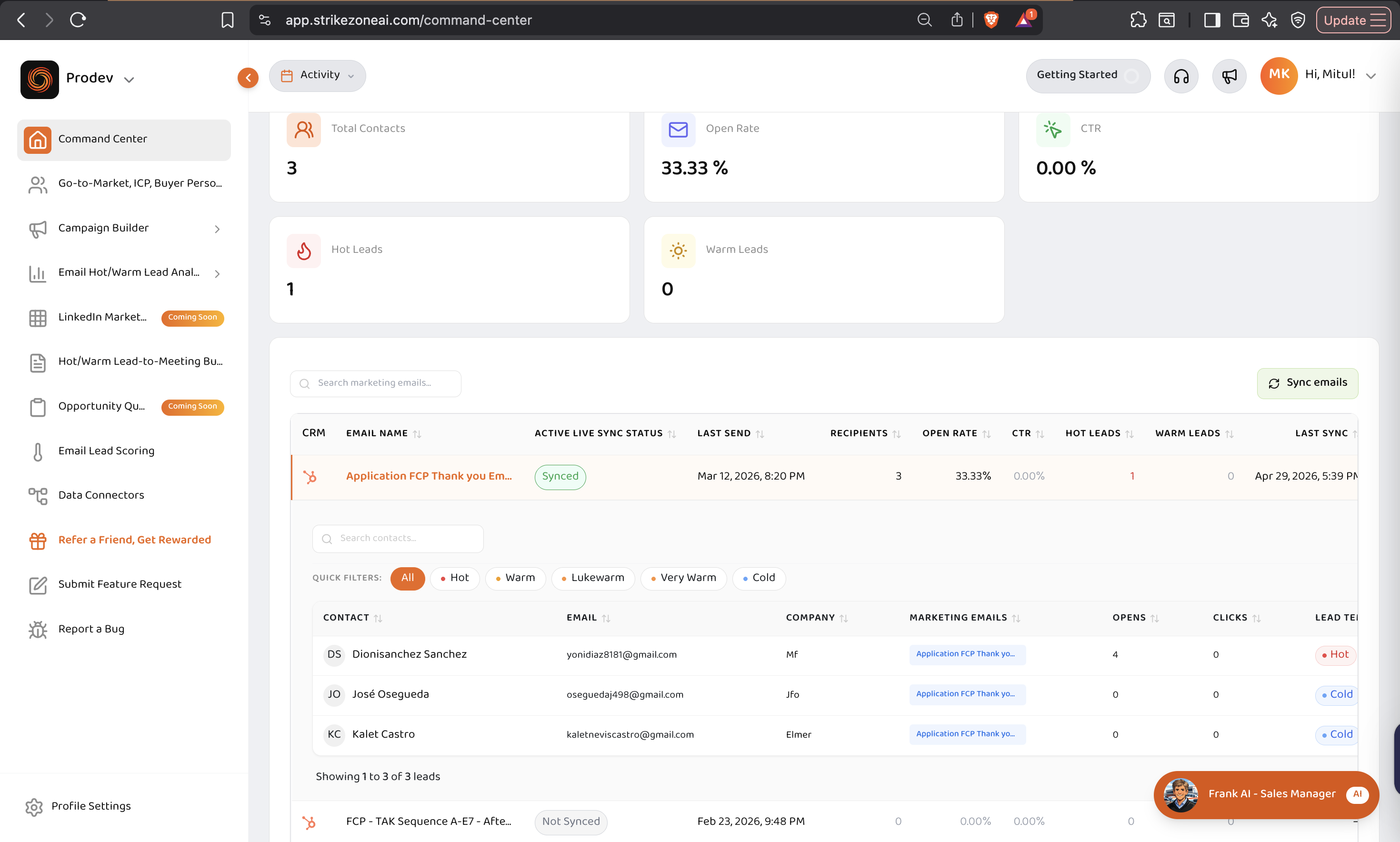
Screenshot: Post-sync confirmation or data-visible state inside Strikezone
Managing the Integration
If your HubSpot access, subscription, or available data changes later, disconnecting and reconnecting the HubSpot connector refreshes the authorization and updates available access inside Strikezone.
To disconnect HubSpot from Strikezone:
- 1Go to Data Connectors.
- 2Open the connected HubSpot connector.
- 3Click Disconnect.
- 4Confirm the action.
To reconnect:
Repeat the authorization flow by selecting Connect HubSpot again and approving access in HubSpot.
Troubleshooting
The connector does not show as connected
Reconnect the HubSpot connector and complete the authorization flow again.
Data does not appear after the connection is complete
Run the initial sync manually and confirm that the connected HubSpot account contains the expected source data.
New HubSpot permissions or data are not available
Disconnect and reconnect the HubSpot connector to refresh authorization and available access.
App Marketplace access is required
If the connection fails, your HubSpot account may not have App Marketplace access enabled.
For HubSpot Super-Admins
- Log in to HubSpot
- Click the Settings icon (top-right)
- In the left sidebar, go to Users & Teams
- Hover over the user who needs access and click Edit permissions
- Scroll to Settings Access
- Enable App Marketplace access (wording may vary depending on HubSpot plan/version)
- Save changes
For Regular HubSpot Users
- Contact your HubSpot administrator
- Ask them to enable App Marketplace Access or permissions to install/connect marketplace apps
Support
For help with the Strikezone HubSpot integration, contact support@strikezoneai.com.
Ready to Get Started?
Connect HubSpot to Strikezone in minutes and unlock powerful GTM automation.
Go to StrikezoneHubSpot Connector FAQs
Clear answers about the HubSpot Marketplace review warning and what it means during setup.
Still Have Questions?
Our team is here to help. Reach out via email and we'll help you with the HubSpot connection process.